Wednesday, 14 June 2017

Barcode in AX 2012 SSRS REPORT


Barcode in AX 2012 SSRS REPORT


Barcode report , I am going to use RDP. This is the basic code you can use in your code according to your requirement.


Step 1: create Temp Table


Step 2 : Now Create Contract Class For Parameter.


Steps 3 : create Data Process Class for Logic. And use temp table and logic


Then open VB and select project -> select report - > add datasets -> data source type -> RDP -> then select your  -> create DP Class.

Then add in design -> precision Design - > select you field -> then run-> take item in parameter field and run
Output :


Thanks

Akshay

Sunday, 14 May 2017

Getting Started With Power BI Desktop


Getting Started With Power BI Desktop: Installation


Today i am going to Talk about Power BI, i know it is too late but what to do, you know when you met with new technology and it is necessary learn that , then only you do, that's what i do.

so in this tutorial i am going Tell How Power BI works,

Remember : Power BI will not alow on personal account
you should sign in when you have work or office Account of Microsoft.

In my case i have Microsoft Account. so before doing anything make and account. in this case i m guessing you have a account.

Step 1 : download Microsoft Power BI Desktop from this link https://powerbi.microsoft.com/en-us/downloads/


Step 2 : once you download then install


Step 3 : Accept All Aggrement. Next


Step 4:  Choose the Location Where you want to Save , Next


Step 5: Now Click On Install


Step 6:  Lets Wait.


Step 7: Finally it is finished to use


Step 8 : Double click on the finished Power BI program to use.


Step 8: final step, it is look like this when all install

\


In the Second Part We Will Learn how to work on that.


Thanks

Akshay

Sunday, 16 April 2017

An invalid directory structure for Microsoft Dynamics AX was detected

Error : "An invalid directory structure for Microsoft Dynamics AX was detected"

Today I met this problem , I was configuring my another company ax in window 7 in 64 bit. Everything was right but when I ran my file it shows this error. After the google search I found solution let me share with you.
Have you notice that when you system is 32 bit then you will have only program file in c: drive where your configuration file save.
If your system is 64 bit then your configuration file save in program files (x86)
Now you have to notice that, where actually your ax confirmation file save. In program files or program files (x86).
And that’s it you have to mention that.
You can solve this problem by two ways

Solution 1. Use note pad . open you files in note pad. And change the path like I changed
If your system is 64 bit than you have to change path
If your system 32 bit then you have to change path
After changing in note pad save configuration.
Solution 2 : by registry run -> regedit. And find the path and change in it.


Thank you
Akshay


Friday, 27 January 2017

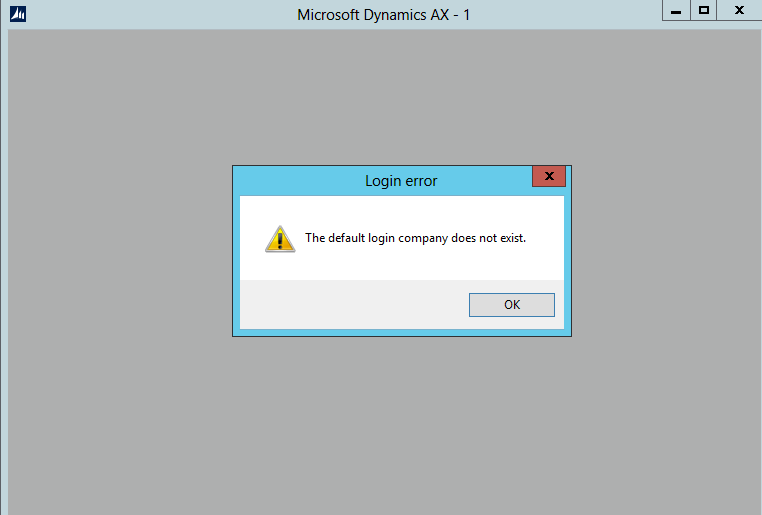
Error : The default login company does not exist.

Hi guys,

Today i have installed AX 2012 R3 in my system, and create one legal entry and default that legal entities , but unfortunately i have deleted my legal entity without changing default company to previous one. Because of that i am getting this error , whenever i am trying to open AX.


Solution : solution is very simple, you have to make change in AX configuration utility.

Server manager -> tool - >microsoft dynamic Ax 2012 Configuration

Select your configuration then -> general -> fill company name -> DAT(which is default company name) -> then save as you configuration.


Thanks

Wednesday, 25 January 2017


Error : Error Message: Assembly containing type Microsoft.Dynamics.AX.Framework.Tools.DMF.ServiceProxy.DmfEntityProxy is not referenced.
Object 'CLRObject' could not be created


Today while implementing Ax , i came across with is error when i want to use data import export framework module and open data import/export framework parameter.


Then i google it, i found that i have not install these,
[image%255B7%255D.png]

Then i install it from AX setup and after stop the services,

reference from:

https://community.dynamics.com/ax/b/axaptavsme/archive/2015/02/14/dixf-error-assembly-containing-type-microsoft-dynamics-ax-framework-tools-dmf-serviceproxy-dmfentityproxy-is-not-referenced


Thanks,

Tuesday, 24 January 2017

The Specified client configuration does not contain valid WCF setting


Error : The Specified client configuration does not contain valid WCF setting.


Solution :  go to control panel find Administrative tool -> find Microsoft dynamic AX 2012 configuration


Now select your configuration -> connection -> click on Refresh Configuration
When it get refresh then select configure Services it will warning -> read it then OK


Then File -> save then close this window


Now go to manage - > then again SAVE as your configuration for update that you change or refresh.

Then APPLY and OK  -> open that saved .Exc


Thanks

Friday, 9 December 2016

AOS dependency service or group failed to start

AOS dependency service or group failed to start

Error : windows could not start ax object server service on local computer. Error 1068: the 

dependency service or group failed to start.


Solution : first check sql server and sql server agent services are running check if it is running.
sql server 2012 with error 17051
sometime most of the people come across with this error while starting the service of sql server

Because of this error you can not open Microsoft Ax. Because  when the database is not opening, then AX is also not support.
Solution:1.      Open the event viewer from server manager -> tools


Then select your error the same error which is highlighted saying Sql server evaluation period has     expired. Because of absence of product key , without product key it is useful for only 180 days
1.      In this case you have to maintain sql server again.
2.      So go to sql server installation center -> click on maintenance link then-> edition upgrade

Do next next then it will come on product key page then use any key according to your requerment . I have chosen this yellow mark key.
MS SQL SERVER 2012 SERIAL NUMBER

MICROSOFT SQL SERVER 2012 DEVELOPER
YQWTX-G8T4R-QW4XX-BVH62-GP68Y

MICROSOFT SQL SERVER 2012 ENTERPRISE SERVER/CAL EDITION
748RB-X4T6B-MRM7V-RTVFF-CHC8H

MICROSOFT SQL SERVER 2012 STANDARD
YFC4R-BRRWB-TVP9Y-6WJQ9-MCJQ7


MICROSOFT SQL SERVER 2012 WEB
FB3W8-YRXDP-G8F8F-C46KG-Q998F

MICROSOFT SQL SERVER 2012 ENTERPRISE CORE
FH666-Y346V-7XFQ3-V69JM-RHW28

MICROSOFT SQL SERVER 2012 BUSINESS INTELLIGENCE
HRV7T-DVTM4-V6XG8-P36T4-MRYT6
On the Select Instance page, select the SQL Instance that you want to fix and Click next. It will take some time and finally you will see a final window and click Upgrade:
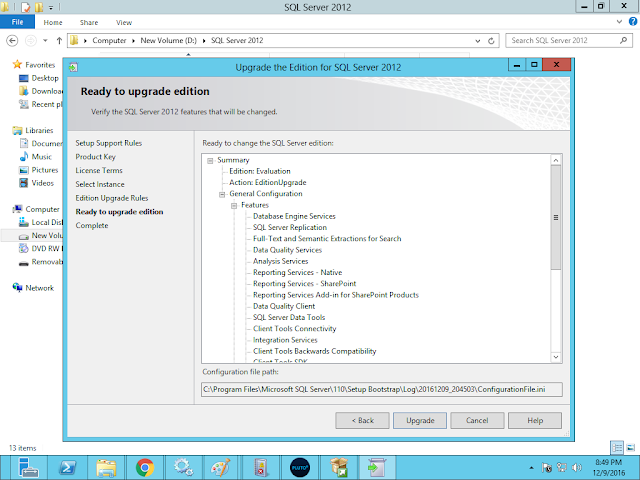
After completed this .
Select sql server configuration manager

 
Then start sql server manually then start service again then
Then start Microsoft dynamic AX 2012 service again
Now use open AX J

Note: if you came across with is error while starting sql server from sql server configuration manager
 

Then sql did not accept product key, do it again

once the sql server service is running you can run AOS and oprn AX


Thanks